

Creating Vector Art for 3D Puff with Canva
Note: You can share the Canva file and let us know which garment brand/item you'd like. We'd be happy to help create the item for you.
This article contains step-by-step instructions for creating vector art for 3D puff using Canva. For help with creating bitmap artwork using Canva for printing with DTG or Flex, please see this article instead.
See also: Creating Vector Art for 3D Puff with Illustrator
3D Puff printing uses vector-based artwork in SVG format (not bitmap like photographs or clipart). This method is perfect for printing words and simple shapes. Here's how to create vector-based artwork using Canva:
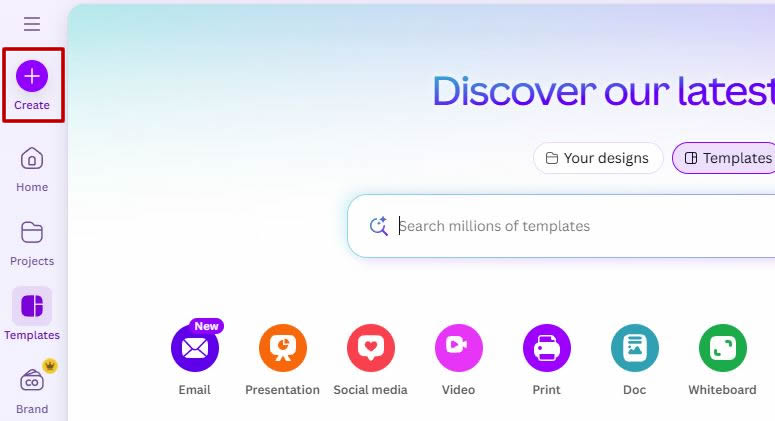
1- Click the "Create" button on the sidebar

2- Click "Custom size"

3- Change the units to inch, and enter 11 inches for the width and height.

4- Click "Text" and search for a thick rounded font.
3D Puff print is best used with one or two words of text with thick, rounded text that does not have sharp edges. Fortunately, Canva has many such fonts.
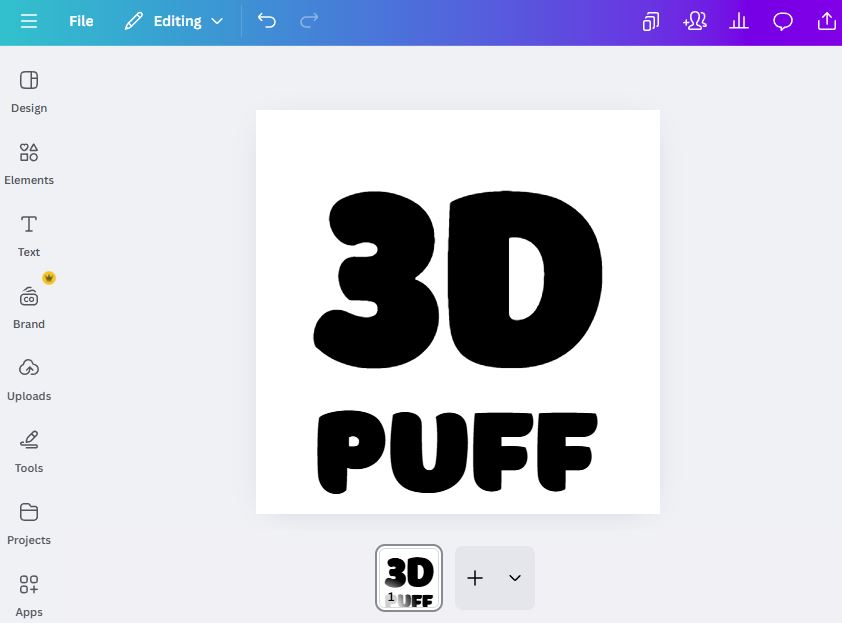
5- Create Your Design
Please keep in mind that 3D puff cannot print complicated shapes or a lot of text. Keep your shapes simple and the text minimal (just one to a few words).
Note: If your design is overly complicated or has a lot of text, it may not be able to be printed with 3D Puff. Please email us if you're not sure if your design is compatible with this printing method.
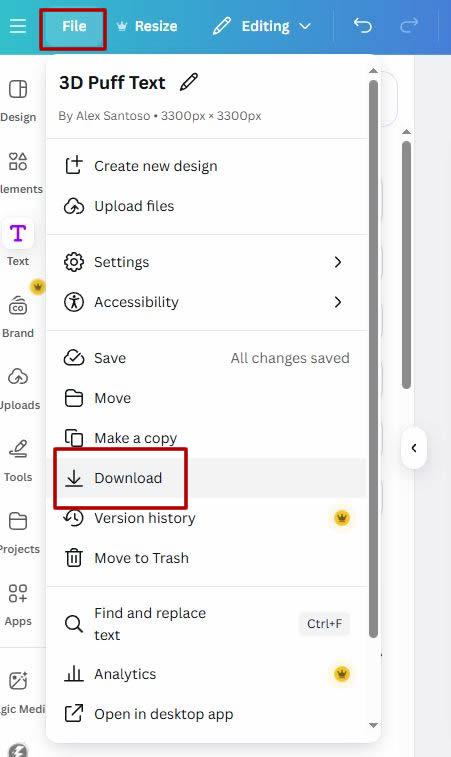
6- Download your file
Click "File" and then click "Download"

7- File type "SVG" with transparent background
Select "SVG" as the file type. This is a Canva Pro feature - if you do not have Canva Pro, please share the file with us and we can save it as .svg file for you.
Please also check the "Transparent background" checkbox.
Download the file and save it on your desktop for uploading to NeatoPOD.