

Creating Artwork with Canva for DTG & Flex Digital Print
Before we start, please know that you can always share the Canva file and let us know which garment brand/item you'd like. We'd be happy to help create the item for you.
Different printing methods/garments/printing locations have different art file template size.
The template size is outlined when you select the print method and location during the item creation process.
For example, the micro rib baby tee (Bella Canvas 1010) uses Flex Digital Print method and has a template size of 8 inch wide by 12 inch tall at 300 dpi (2400 pixels by 3600 pixels).

If you create a graphic that is 5 inches wide within the 8x12 template (at 300dpi), then the graphic will print at 5 inches wide on the tee.
Note: if you're designing for a unisex tee, the art file size for Flex is 11x16 (at 300dpi). Please remember that different print positions may have different size requirements so please check the art file requirement.
With some graphic editing software like Photoshop, it's easy to download and open the template (which will create a file that is the right size), add your image in a new layer, then delete the template layer and save the art file.
But in Canva, I've found that some people find that confusing.
So here's an alternate (and I think easier) way to design in Canva:

1- Click the "Create a design" button, and click "Custom Size"

2- Fill in the width and height
Use "2400" and "3600" and the unit "px" (that's 8x12 at 300 dpi) for the micro rib baby tee BC 1010. And click "Create new design".
If you are creating a design for DTG or front print on a regular unisex tee, that width and height requirements will be different. Please refer to the template instruction for the right size to enter.
3- Start designing
4- Save the file
After you've finished designing the artwork, click "File" and then "Download"
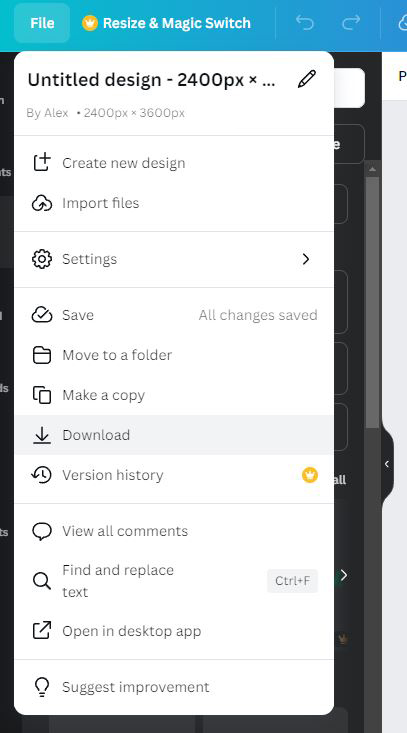
5- Download file type
In the download menu, select PNG as the file type. Select "Transparent background" and then click "Download"
Optional: You can also select "Compress file (lower quality)" if the downloaded artfile is larger then 32 MB.

Please note that transparent background is required for printing tee - this is a Canva Pro feature, so you'll have to upgrade your Canva account.